
Transition Management
New to this? What the instructions mean
Click means select with your mouse (or tap on a touch screen). Row menu means the small actions menu beside an item in a list. Drop-down means a box you click to choose an option. Drag and drop means hold the mouse button on an item, move it, then release.
CMS is your online screen-control system. Display means a managed screen. Publish makes a layout ready to play. Schedule chooses the screens and times.
Some buttons depend on your version and permissions. If your screen looks different, ask your administrator or get help.
This is a detailed reference page. If you are just getting started, show your first image first.
Transitions are managed from the Transitions page under the Administration section of the main CMS menu. Configure which Transitions should be available to Users for assignment to Media items:
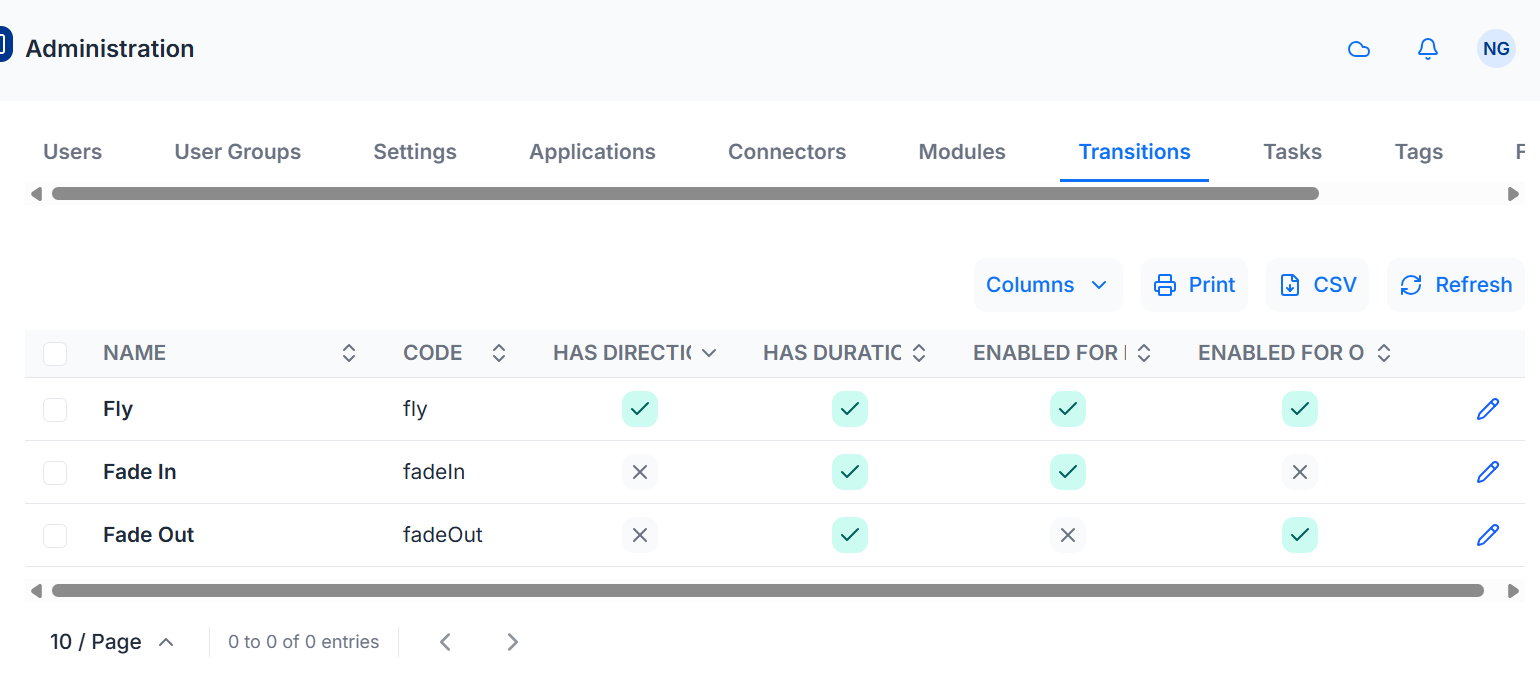
- Fade In - Increase Opacity from 0 to 100.
- Fade Out - Decrease Opacity from 100 to 0.
- Fly - Fly in or out on a compass point.
Transition Defaults
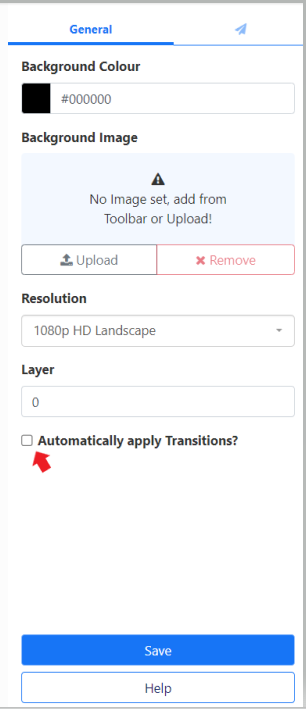
Default Transitions can be easily enabled for all Widgets added to a Layout by ticking the Automatically apply Transitions? box from the Layout property panel:
Playlist Transitions
These are the Transitions between Media items on a Playlist and are set as In and Out transitions.
The Transition form adapts depending on the Transition selected and the options available for that transition. In most cases it is necessary to select a duration for the Transition in Milliseconds and in the case of Fly, a direction must also be selected.
Playlist Exit Transition
A Playlist Exit Transition happens when the last Media Item to be displayed on a Playlist is shown and allows for a different Exit Transition to be set.
Need a hand with your displays?
Talk to Screen Moove →