
Geo Scheduling
New to this? What the instructions mean
Click means select with your mouse (or tap on a touch screen). Row menu means the small actions menu beside an item in a list. Drop-down means a box you click to choose an option. Drag and drop means hold the mouse button on an item, move it, then release.
CMS is your online screen-control system. Display means a managed screen. Publish makes a layout ready to play. Schedule chooses the screens and times.
Some buttons depend on your version and permissions. If your screen looks different, ask your administrator or get help.
This is a detailed reference page. If you are just getting started, show your first image first.
Scheduled Events can be configured to be location aware with locations displayed on a map view.
Define Location
- From the Add/Edit Event form, click on the Optional tab and select the Geo Location tab
- Tick in the Geo Schedule box to enable and define the location
- Use the buttons in the top left of the map to Zoom in and out
- Click on the search icon to enter details for a particular area
On opening, the map will default to what is entered for DEFAULT_LAT and DEFAULT_LONG in CMS Settings, under the Displays tab.
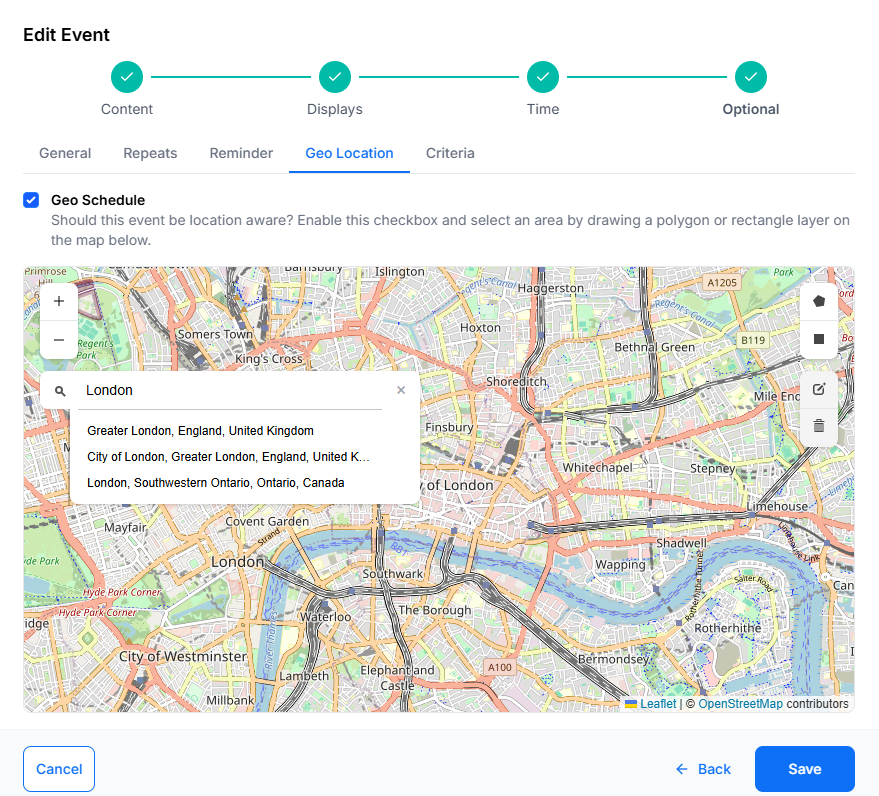
- Define an area by drawing a Polygon or Rectangle layer on the map.
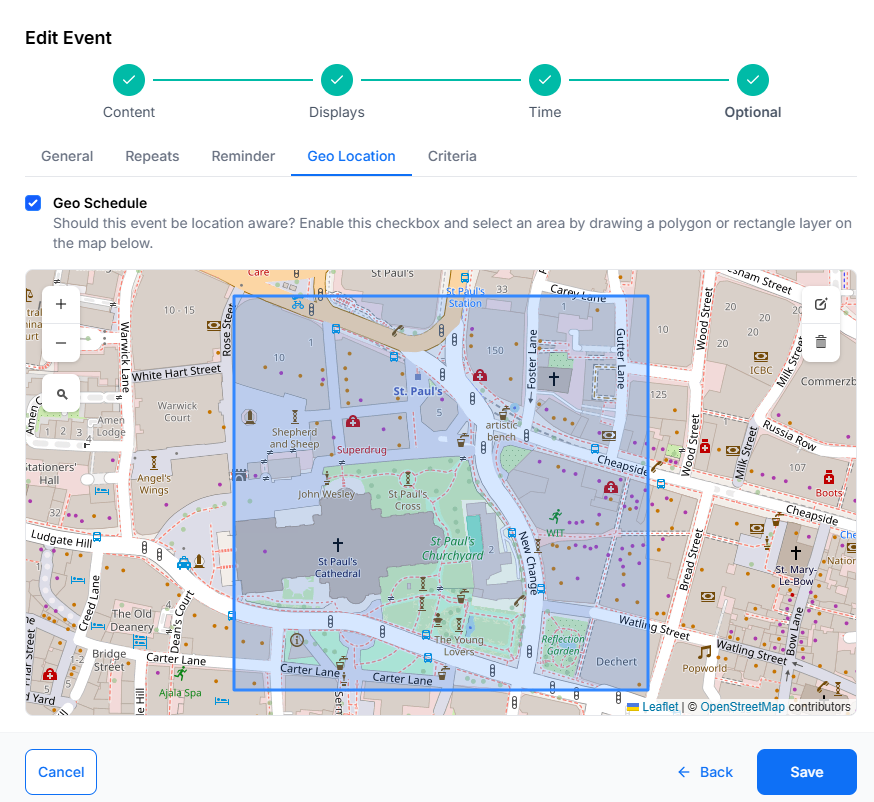
Edit
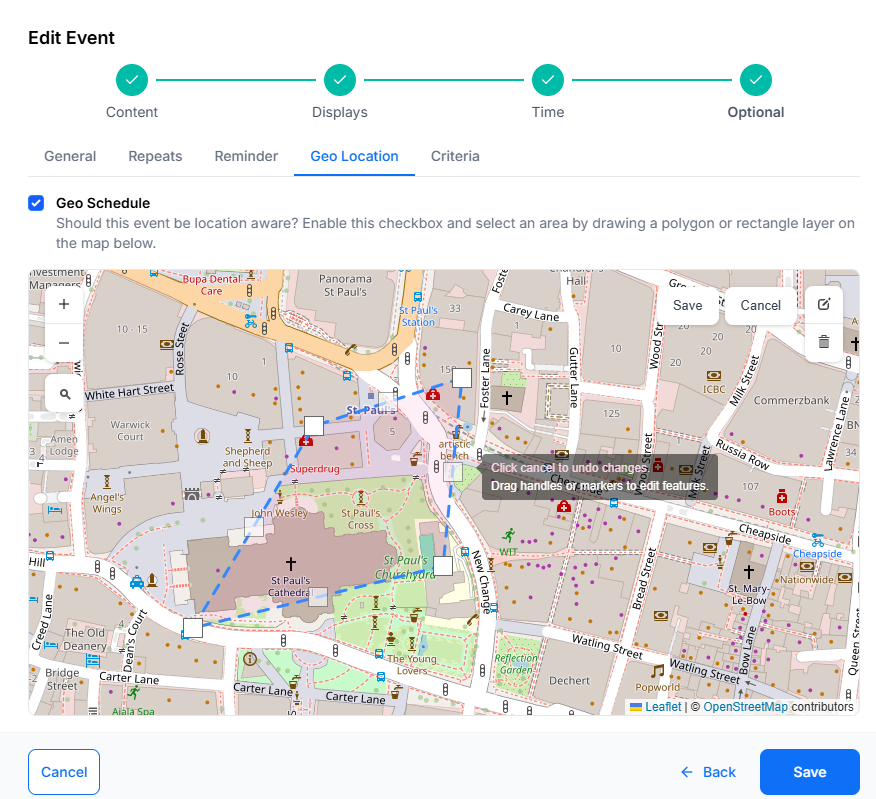
- Once an area has been defined, click on the edit icon, at the top right of the map, to to drag the markers to make adjustments to the existing Layer.
- Click on the grey Save button located here to ensure that edits are saved.
Delete
- To remove the area, use the bin icon and click into the area to delete
- Click the grey Save button to save the removal of the layer.
Edit this schedule by clicking the icon in the Calendar or by using the row menu in the Grid view!
Need a hand with your displays?
Talk to Screen Moove →