
Overlay Layouts
New to this? What the instructions mean
Click means select with your mouse (or tap on a touch screen). Row menu means the small actions menu beside an item in a list. Drop-down means a box you click to choose an option. Drag and drop means hold the mouse button on an item, move it, then release.
CMS is your online screen-control system. Display means a managed screen. Publish makes a layout ready to play. Schedule chooses the screens and times.
Some buttons depend on your version and permissions. If your screen looks different, ask your administrator or get help.
This is a detailed reference page. If you are just getting started, show your first image first.
An Overlay Layout will show on top of other Layouts once Scheduled.
Overlay Layouts can also be Scheduled to be used with Layouts inside a Layout List Campaign.
Overlay Layouts remain on top while your normal scheduled content changes underneath. This is particularly useful for logos, important information or emergency notices for example.
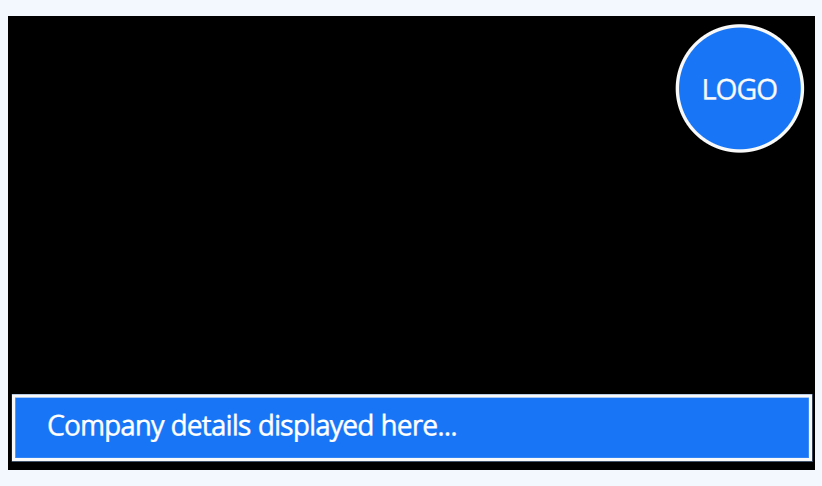
Create an Overlay Layout
Overlay Layouts are created in exactly the same way as all other Layouts. Add content to fit around your existing designs so that your Overlay Layout can “sit on top” of other Layouts that are Scheduled at the same time as the Overlay. Your Overlay Layout will display its all important content whilst the Layouts “underneath” play in rotation.
Screen Moove will not render the background on Players when a Layout is scheduled as an Overlay Layout.
Overlay Layouts behave in a different way to Layouts when scheduled and will only render media content once so will not show any refreshed content.
If your Overlay Layout includes content which needs to be refreshed, Calendar or Ticker Widgets for example, a Playlist should be added to the Layout and the media added to the Playlist. Then when it loads the next item in the Playlist it will reload the other items to show refreshed content.
Need a hand with your displays?
Talk to Screen Moove →