
Widgets
New to this? What the instructions mean
Click means select with your mouse (or tap on a touch screen). Row menu means the small actions menu beside an item in a list. Drop-down means a box you click to choose an option. Drag and drop means hold the mouse button on an item, move it, then release.
CMS is your online screen-control system. Display means a managed screen. Publish makes a layout ready to play. Schedule chooses the screens and times.
Some buttons depend on your version and permissions. If your screen looks different, ask your administrator or get help.
This is a detailed reference page. If you are just getting started, show your first image first.
Widgets are a core component of Screen Moove and are used to display content on a Layout or in a Playlist.
Feature Overview
- Selection of powerful Widgets to choose from.
- Create content quickly and easily.
- Integrated content from third parties.
- Show dynamic content on screens.
- Select which Modules to make available to other users of the CMS.
All Widgets have an associated Module which tells Screen Moove what information is required from the User for configuration as to how it should be displayed.
Widgets can be disabled/enabled by an Administrator in the Modules section of the CMS.
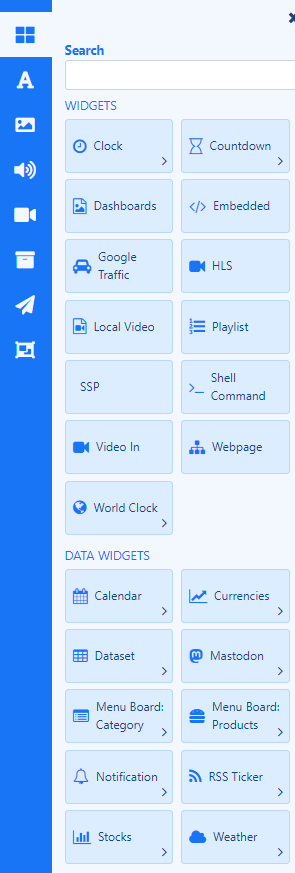
Widgets are available from the Toolbox:
- Click the top button to view available Widgets.
Widgets can be marked as Favourites to appear in their own section for easier selection:
- Click the star icon at the top left of a Widget card.
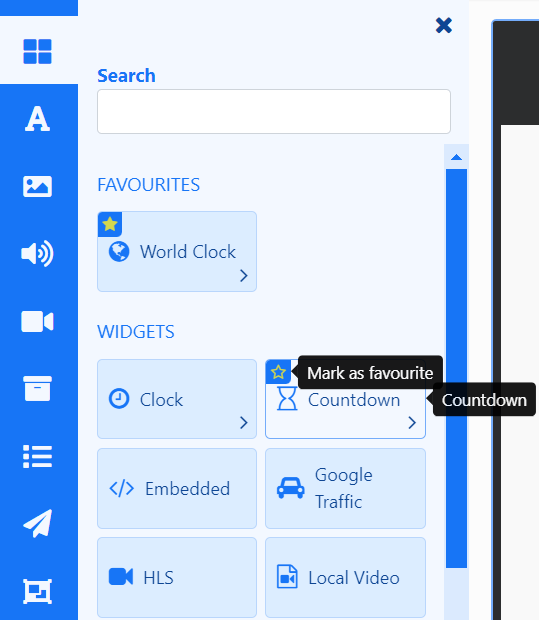
Click the star to deselect from the Favourites section.
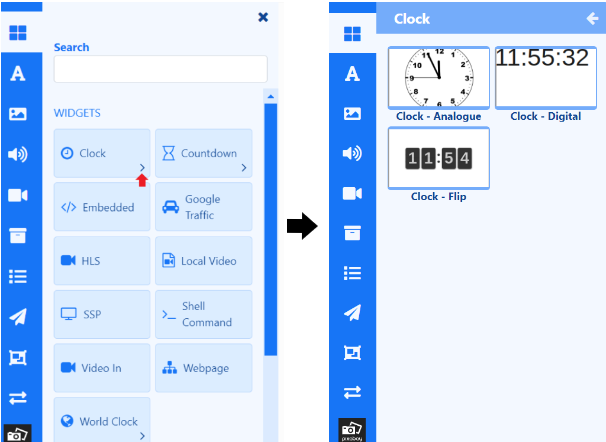
Widgets that have an > need to be opened to select from additional Widget templates:
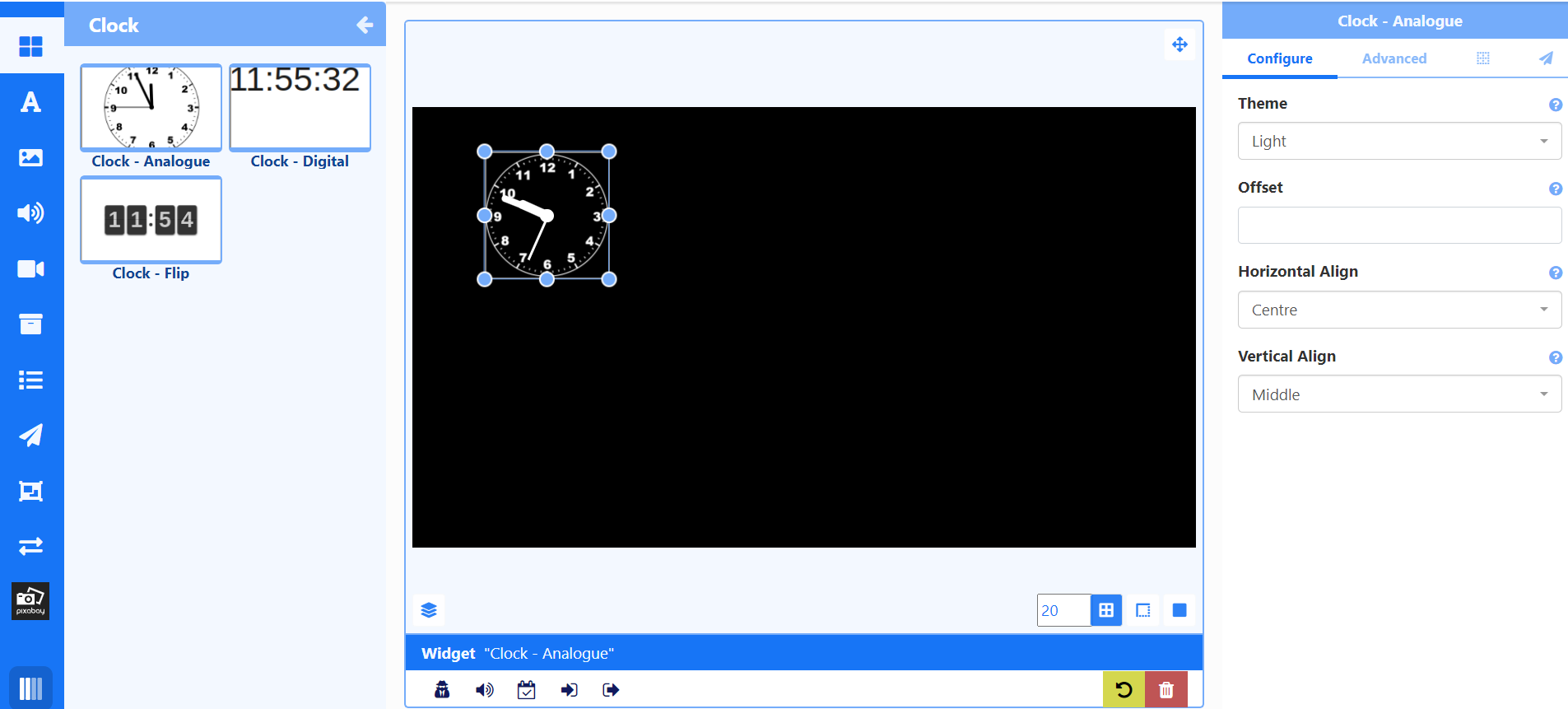
Add to Layouts by drag and drop or click in the Widget card to highlight then click on the canvas to add:
- Position and resize.
- Configure from the available options in the Properties Panel.
Next Data Widgets…
Need a hand with your displays?
Talk to Screen Moove →