
Image
New to this? What the instructions mean
Click means select with your mouse (or tap on a touch screen). Row menu means the small actions menu beside an item in a list. Drop-down means a box you click to choose an option. Drag and drop means hold the mouse button on an item, move it, then release.
CMS is your online screen-control system. Display means a managed screen. Publish makes a layout ready to play. Schedule chooses the screens and times.
Some buttons depend on your version and permissions. If your screen looks different, ask your administrator or get help.
This is a detailed reference page. If you are just getting started, show your first image first.
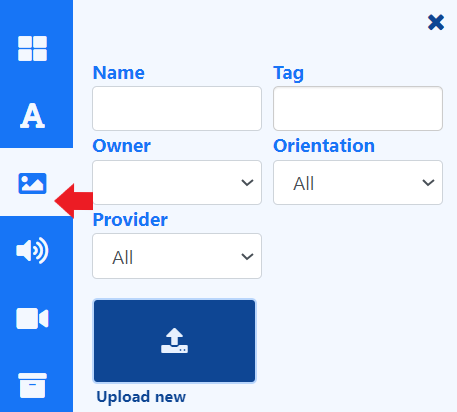
Add Image files to include on your Layouts and Playlists.
Overview
- Valid extensions: jpg,jpeg,png,bmp,gif,webp.
Animated gif’s are not supported on any Player!
- Upload new image files directly to Playlists/Layouts from the Library Search.
- Files uploaded directly to Playlists and Layouts are automatically saved to the Library for re-use.
- Image files can be also be uploaded in advance to the Library.
When selecting image files to upload, users should check the resolution of the image and keep it within the intended screen size. Caution should be taken as uploading very large images can cause issues for the Player.
-
Set start and end times for image files uploaded directly to a Playlist.
-
Save image files to Folders on upload, to easily control access to Users.
-
Centre, Stretch and Fit scaling.
-
Select images to use from Pixabay without leaving the CMS.
As Screen Moove takes no measures to control what content is put on your displays, it is your responsibility to ensure that any images used are appropriately attributed if you do not own the rights.
Further Reading
Using Start and End times in Playlists
Need a hand with your displays?
Talk to Screen Moove →